Working with the “Verified Download” Component
The Verified Download Component (VDC) is a block that will allow you to display a two-column layout to showcase a resource to be downloaded. In this guide you will learn how to configure this component:
- Basic Configuration
- Restrict Download with Checkbox
- Restrict Download with Form
Please note that this component is only available in the SaferBaby and Learn websites
Basic Configuration
Follow these steps to use the component. Once completed, you can configure the component to require users to either confirm the download by selecting a checkbox or complete a form before downloading the resource.
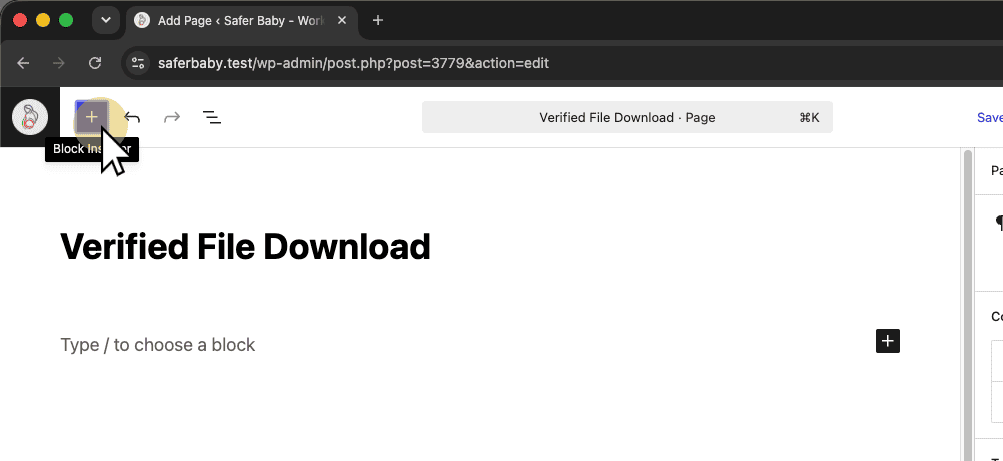
1. Open Block Inserter
Click the Block Inserter button (plus sign) to open the menu for adding new content blocks to the page.
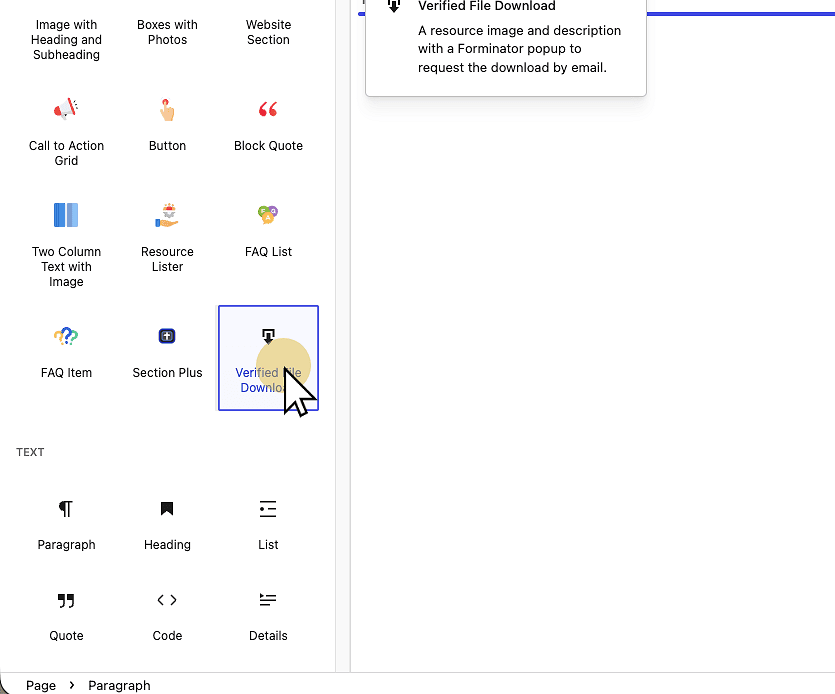
2. Add Verified File Download Block
Click the Verified File Download block to add it to your page layout.
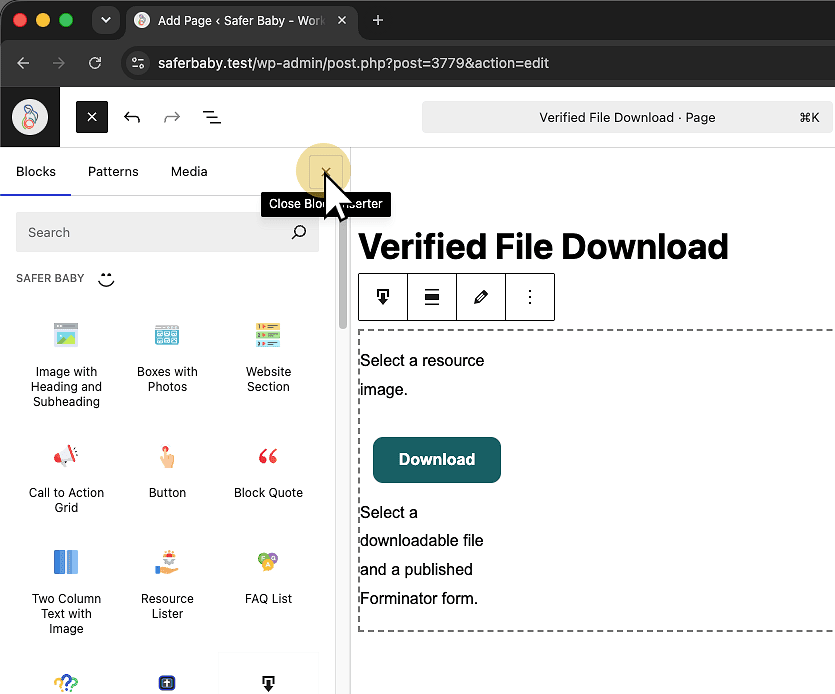
3. Close Block Inserter
Click the Close Block Inserter button to hide the block selection panel and return to editing your page.
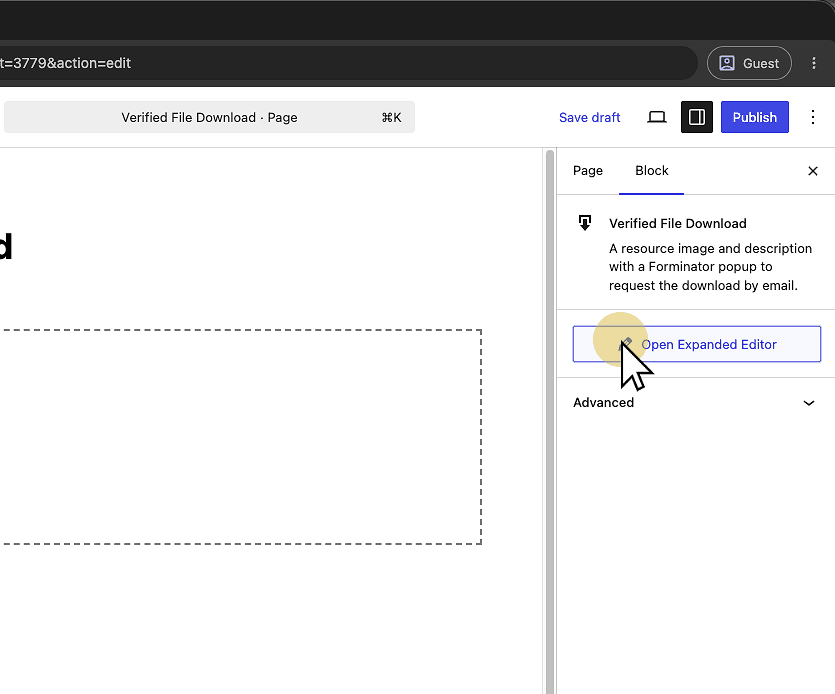
4. Click "Open Expanded Editor"
Click the Open Expanded Editor button to access additional editing options for the Verified File Download component.
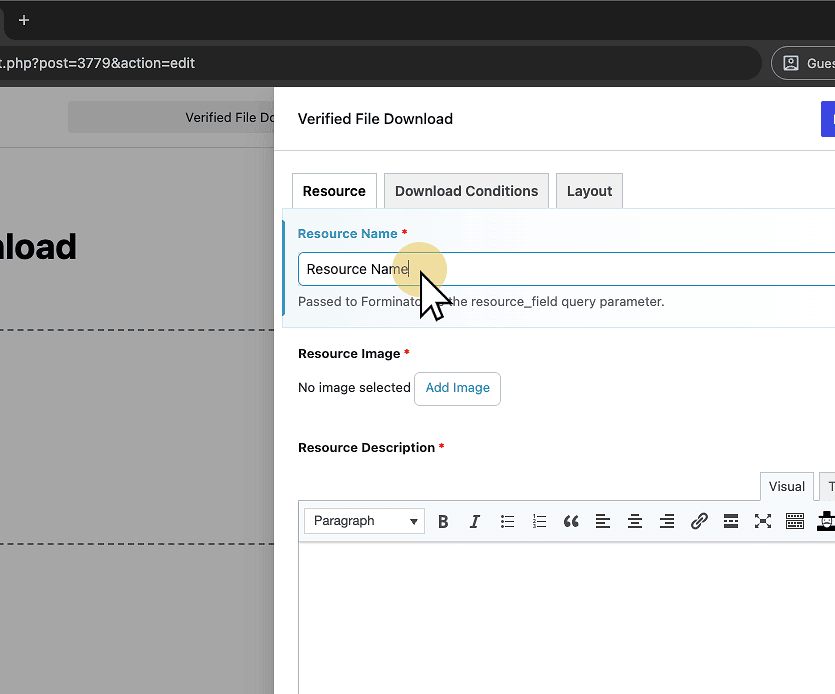
5. Type "Resource Name"
Enter the desired name for your downloadable resource in the Resource Name text field. This name will be used to identify the resource throughout the Verified Download Component.
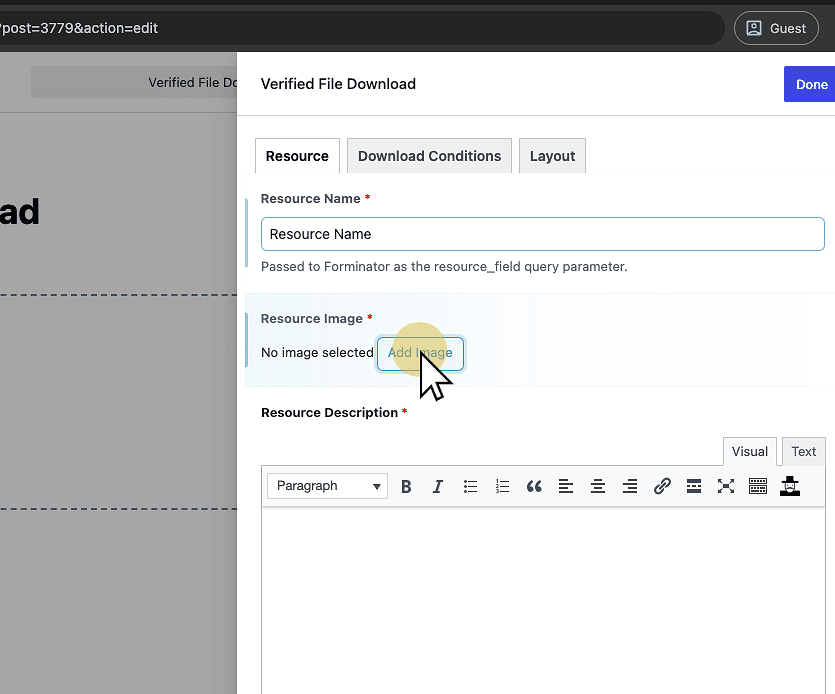
6. Add Resource Image
Click the Add Image button to upload or select an image for the resource. This image will be displayed as part of the Verified Download Component.
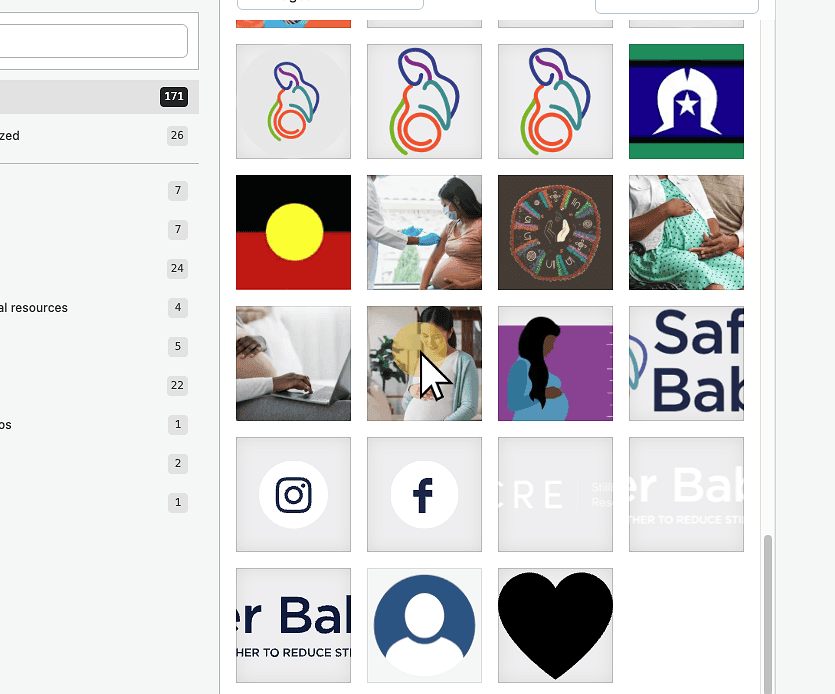
7. Select Resource Image
Click the image (assuming it has already been uploaded) to select it as the image to be displayed for the Verified Download Component.
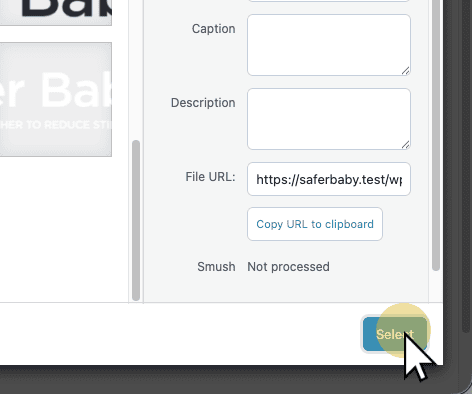
8. Click Select
Click Select when you have defined the image to use.
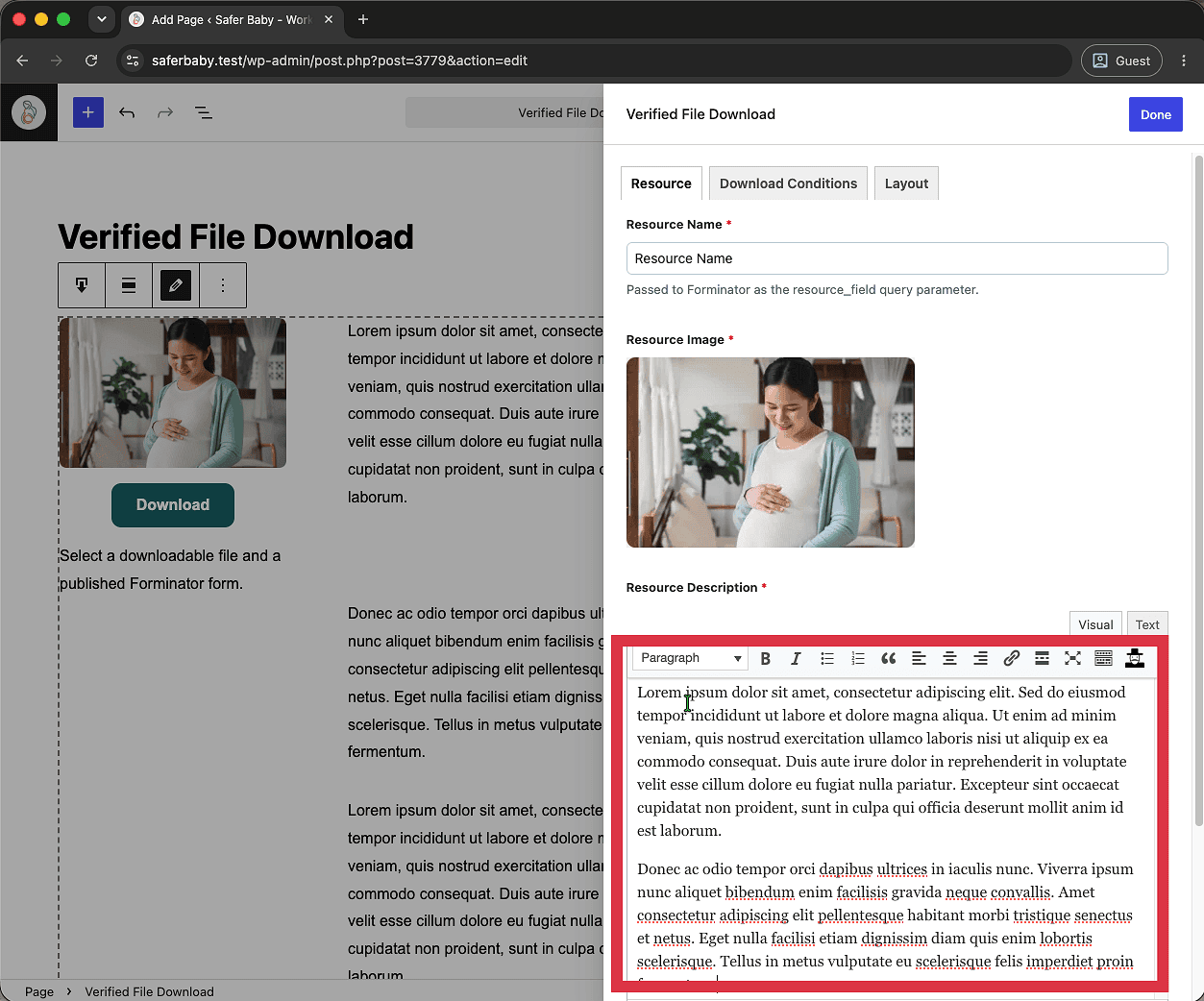
9. Type "v"
Under the Resource Description section, enter the paragraphs that describe the resource that will be downloaded.
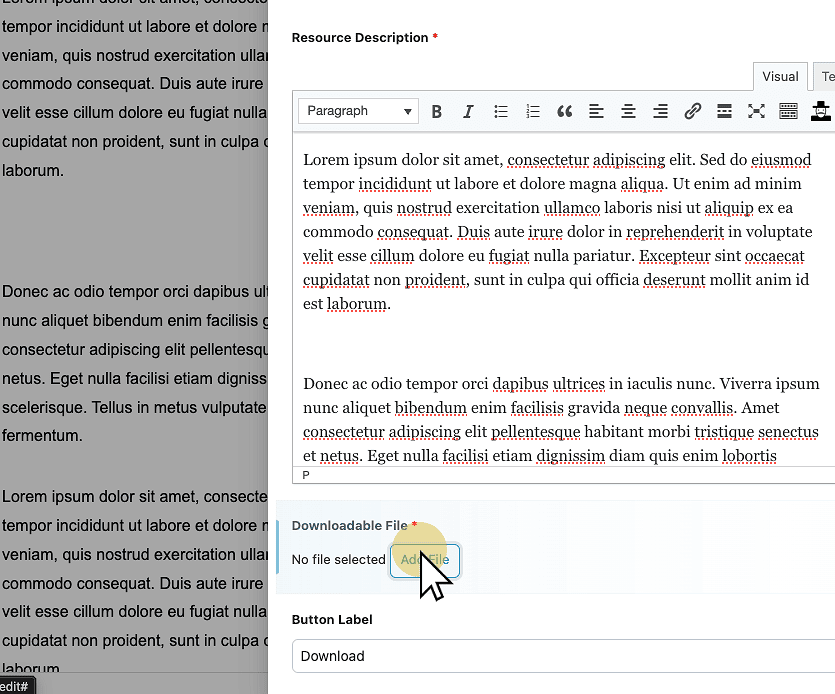
10. Select Downloadable File
Click the Choose File button under Downloadable File to select a file from your computer that users will be able to download.
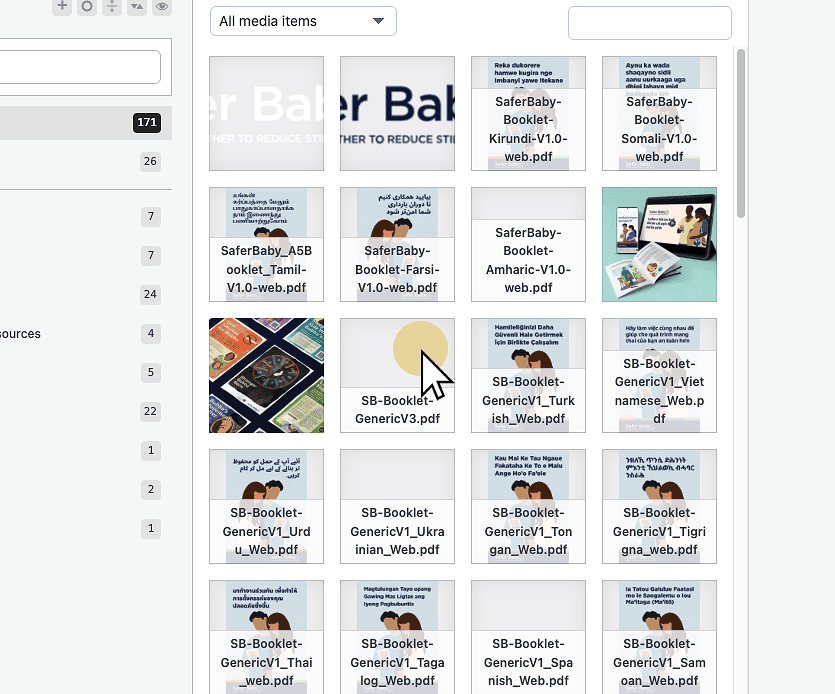
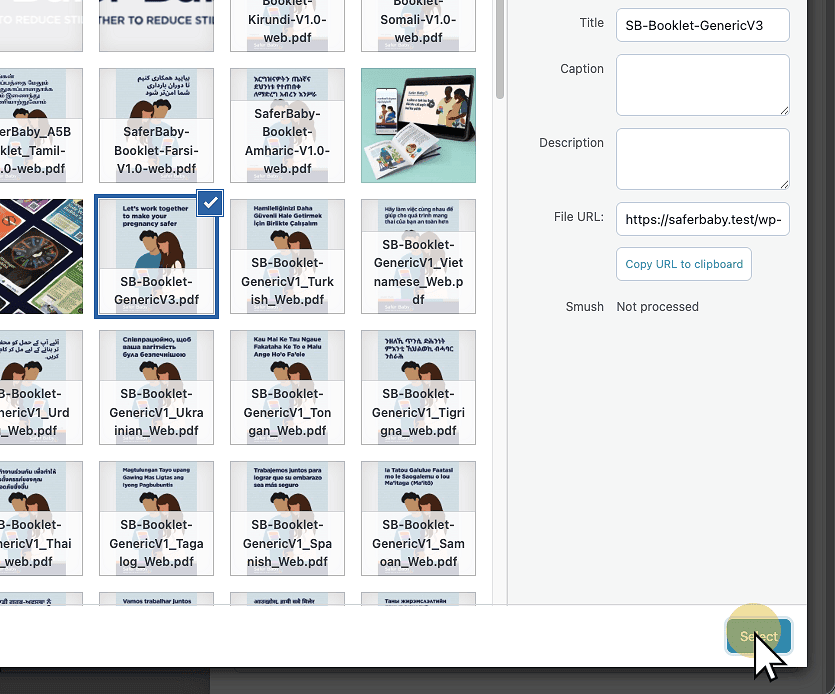
11. Select "SB-Booklet-GenericV3.pdf"
Click the desired file to select it as the downloadable resource for the Verified Download Component (assuming it has been uploaded)
12. Click Select
One you have defined the resource, click Select.
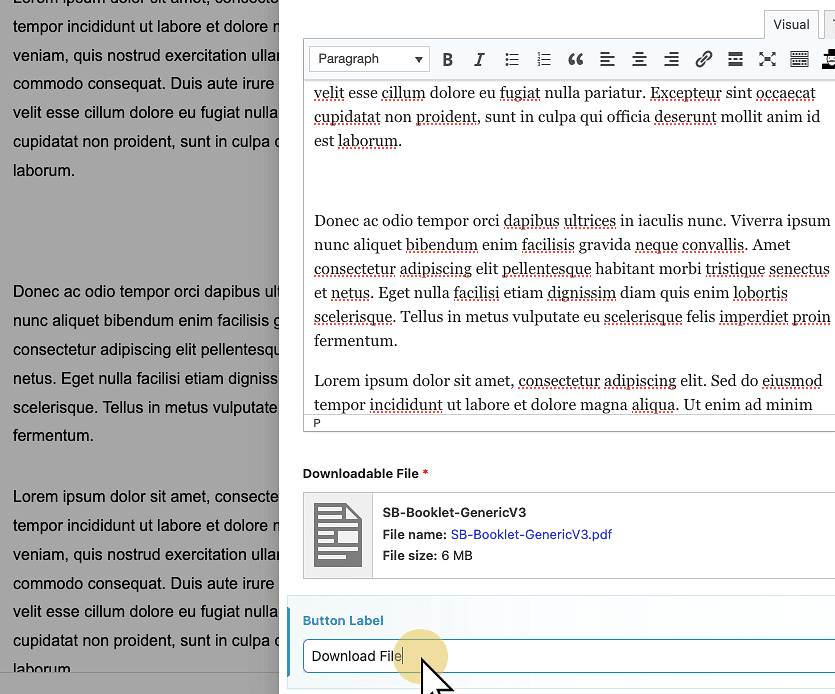
13. Change button label (optional)
By default, the button will read Download. If you would like to change this to other text, change it under Button label.
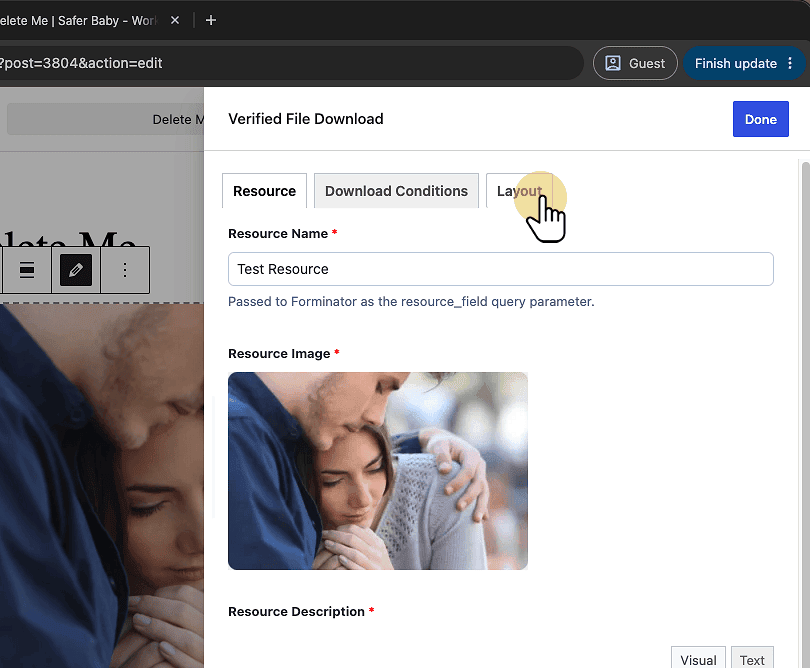
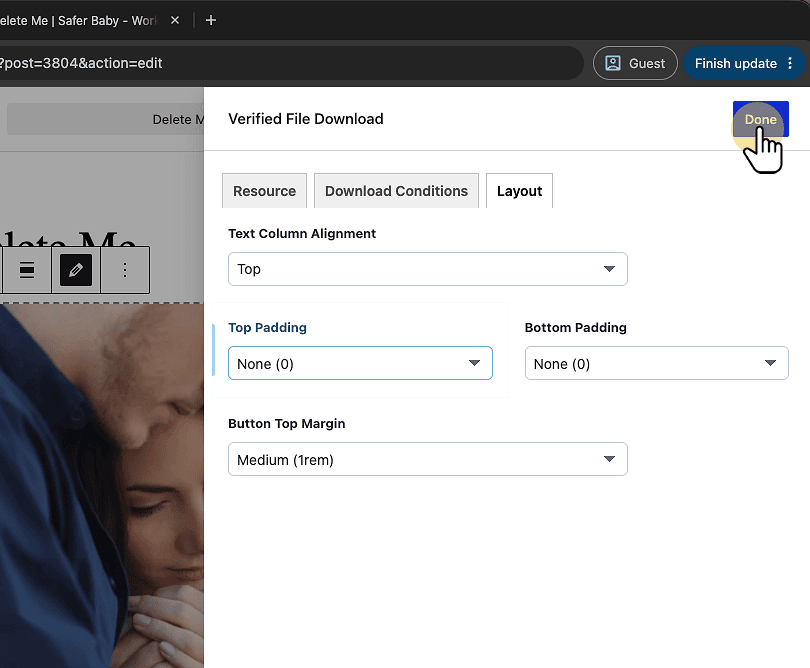
14. Click Layout Tab
Click the Layout tab to access layout configuration options for the Verified File Download component.
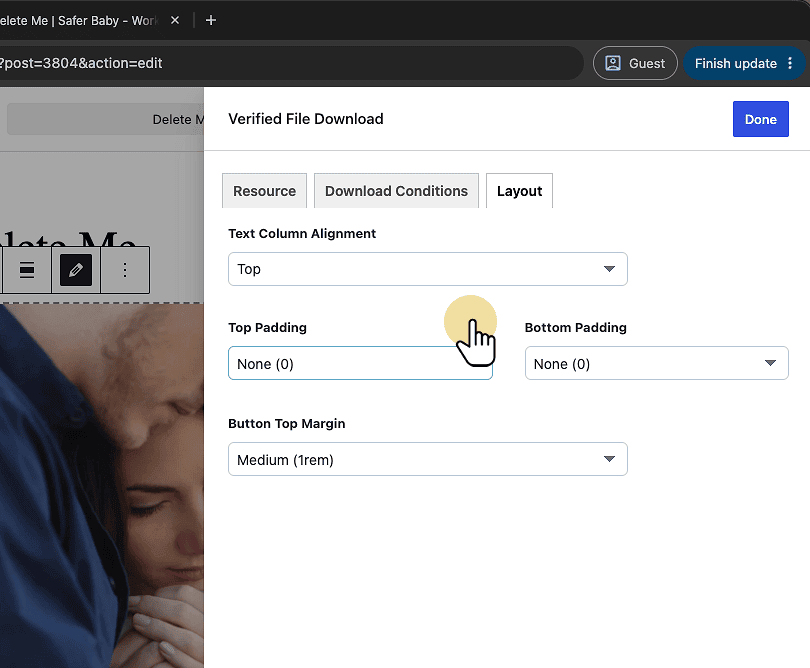
15. Select your spacing/alignment options
Use the Layout tab to adjust how the content is positioned and spaced. You can change the vertical alignment of the text, add space above or below the content, and adjust the space above the Download button.
16. Click "Done"
Once Finished, click Done to finish configuring the component.
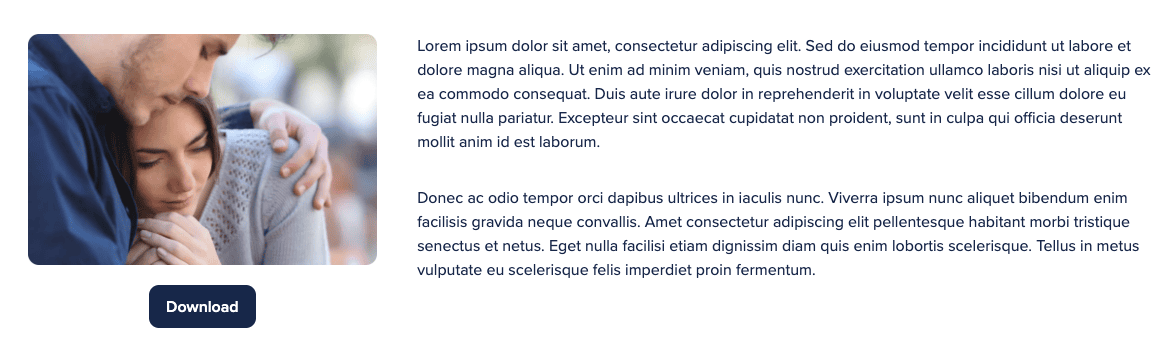
17. Preview your component
Publish or save the page, then view the component to check the layout. Adjust the layout settings as needed.
18. Restrict Download with Checkbox
Follow these steps to configure a Verified Download component so that users must select a checkbox before the Download button is enabled.
19. Click the component
While using the editor, click on the component to select it
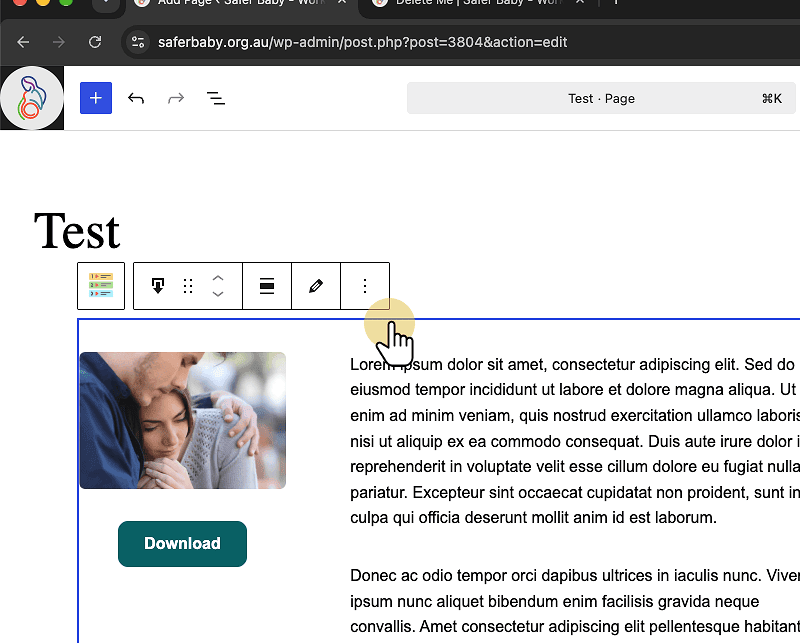
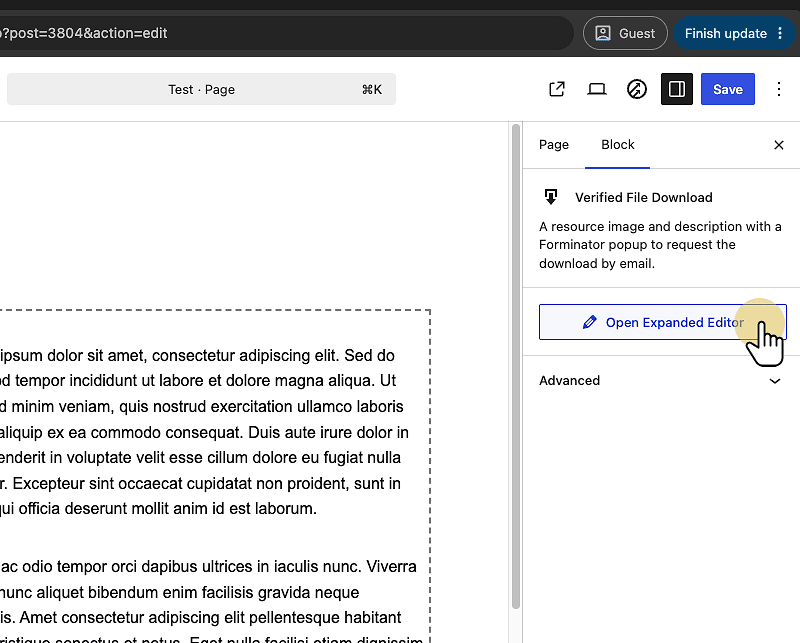
20. Copy Click "Open Expanded Editor"
Click the Open Expanded Editor button to access additional editing options for the Verified File Download component.
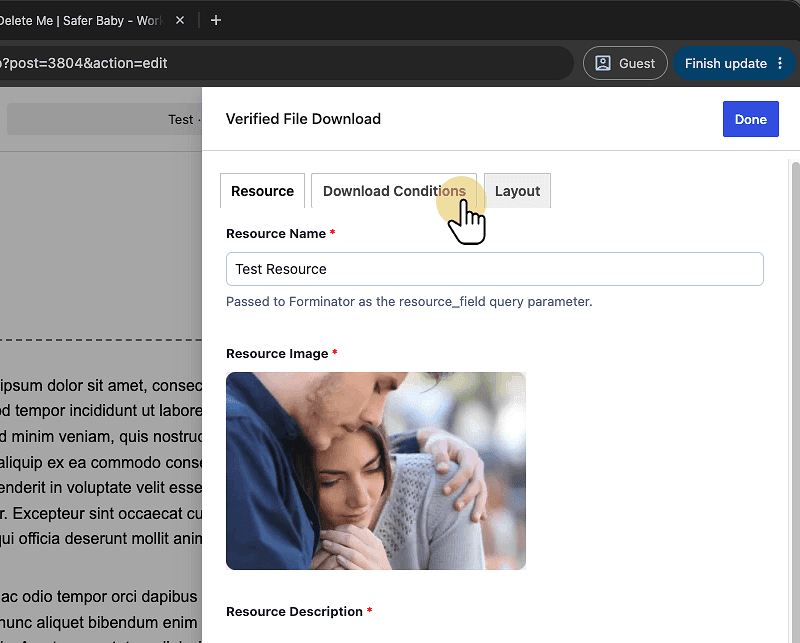
21. Click "Download Conditions"
Click the Download Conditions tab to access and configure the conditions required for downloading the resource.
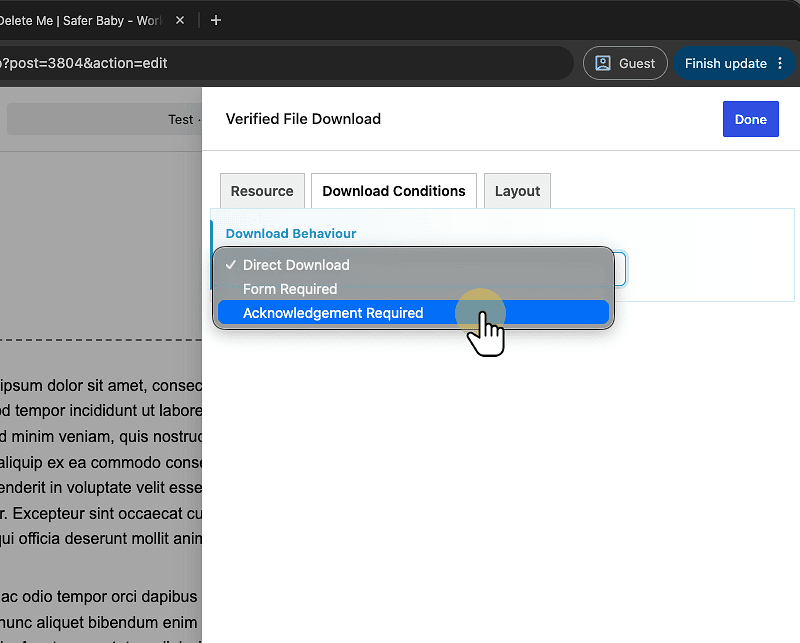
22. Select "Acknowledgement Required"
Select Acknowledgement Required from the Download Behaviour dropdown to require users to acknowledge terms before downloading the resource.
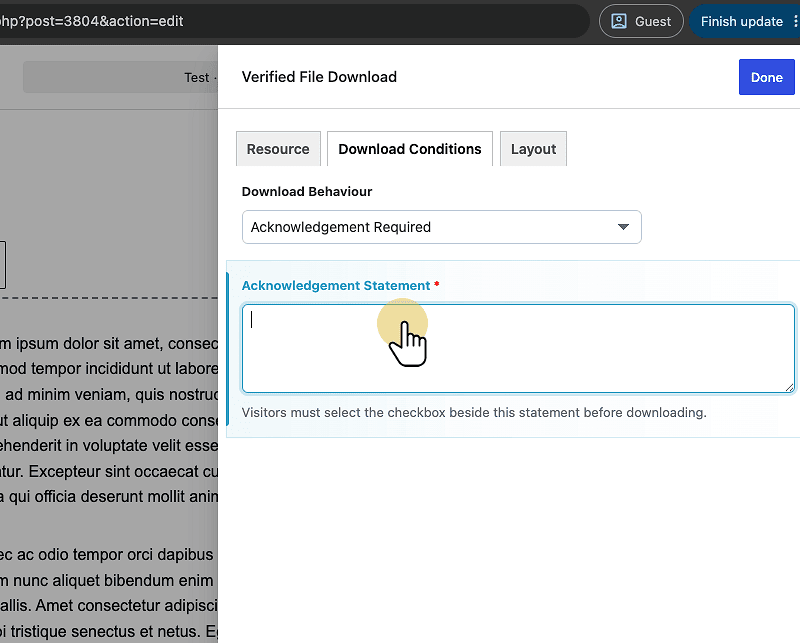
23. Type "li 1p"
Type your desired acknowledgement statement into the Acknowledgement Statement text area. This statement will be shown to users who must agree before downloading the resource.
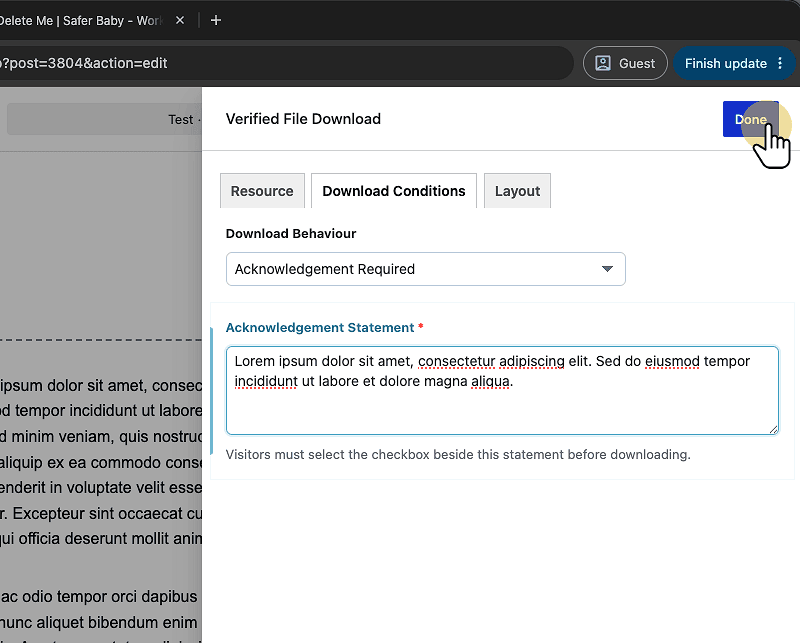
24. Click "Verified File Download"
Click the Done button to save your changes to the Verified File Download settings and close the configuration panel.
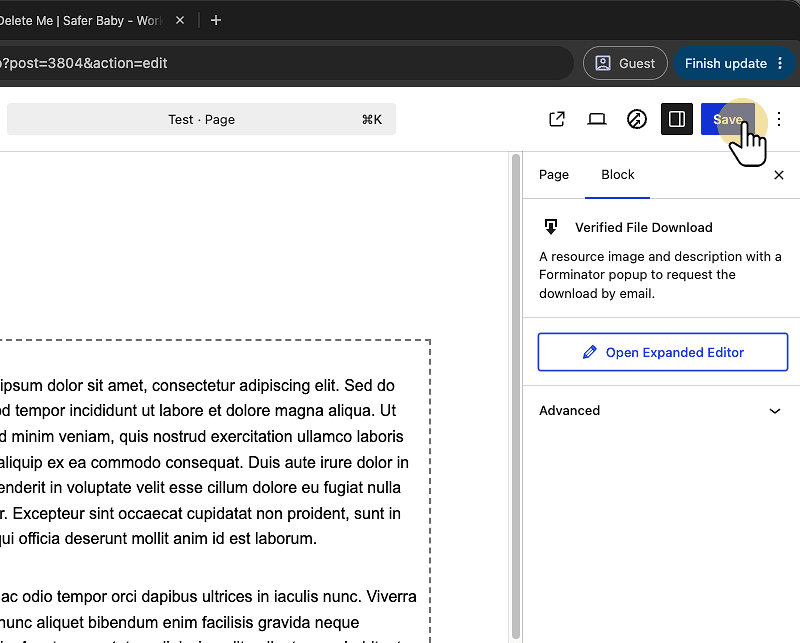
25. Click "Save"
Click the Save button to store your changes to the Verified Download Component configuration.
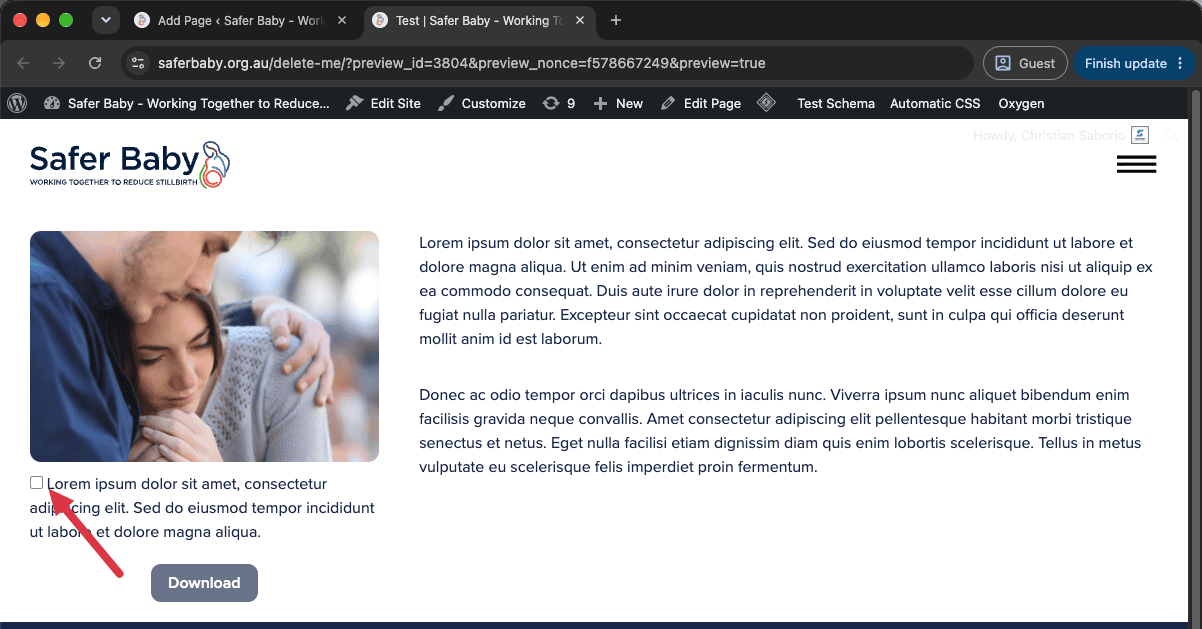
26. Preview the Component
The Download button will not be disabled until the checkbox is clicked.
27. Restrict Download with Form
This configuration option requires a form to be created beforehand. If the required form does not exist, contact the webmaster to have one created for you.
This configuration option requires users to complete a form before they can download the resource. Once the form is submitted, they will receive an email containing the download link.
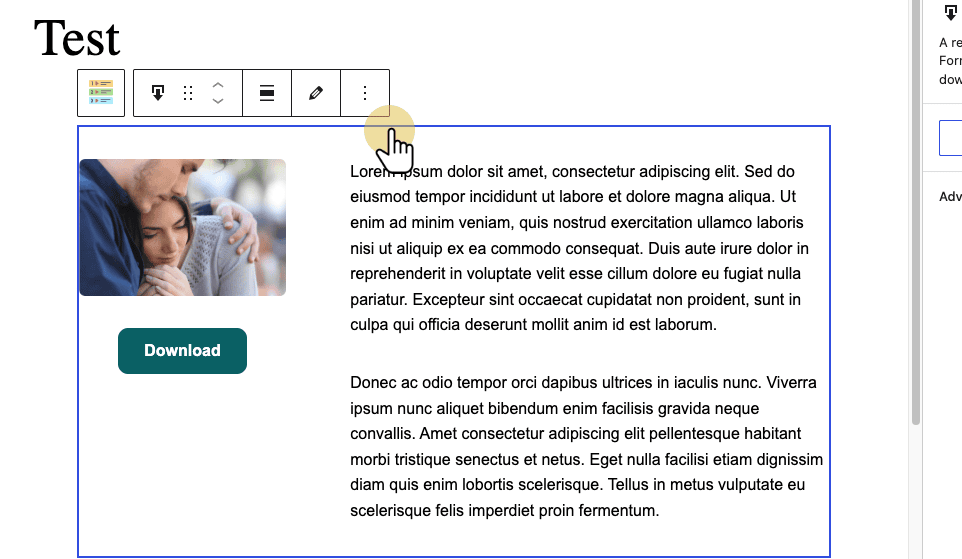
28. Copy Click the component
While using the editor, click on the component to select it
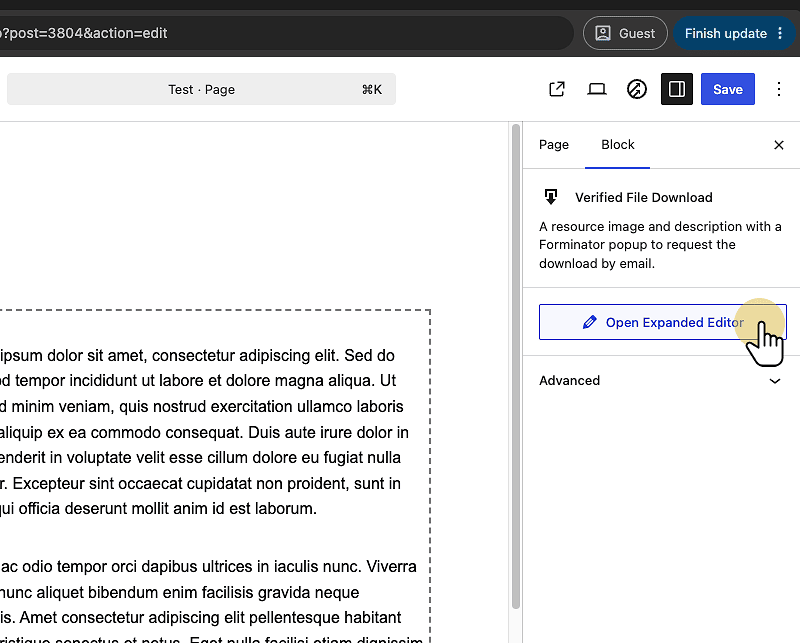
29. Click "Open Expanded Editor"
Click the Open Expanded Editor button to access additional editing options for the Verified File Download component.
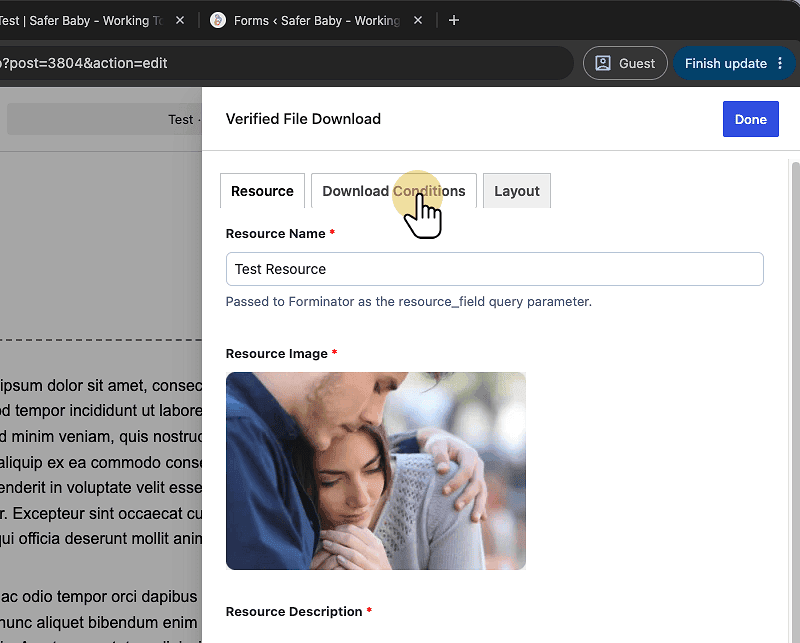
30. Click "Download Conditions"
Click the Download Conditions tab to access and configure the requirements for downloading the resource.
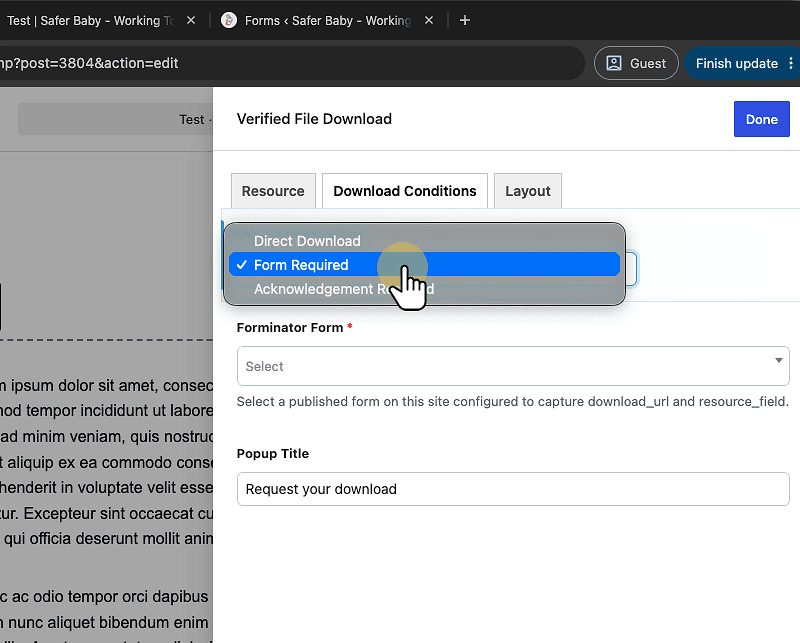
31. Select "Form Required"
Select Form Required from the dropdown menu to require users to complete a form before downloading the resource.
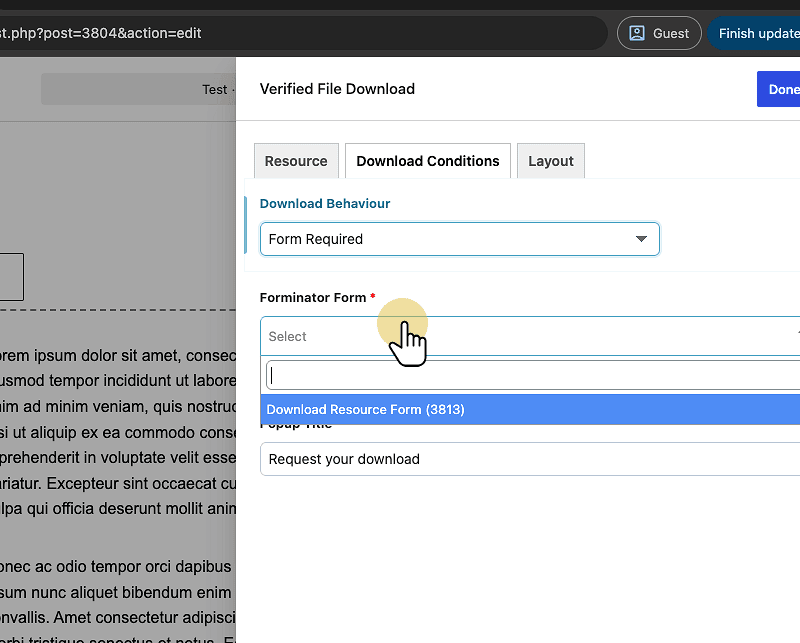
32. Select "Download Resource Form (3813)"
Select the Download Resource Form (or the form that was created for this purpose) option from the Forminator Form dropdown to specify which form must be completed before allowing the download.
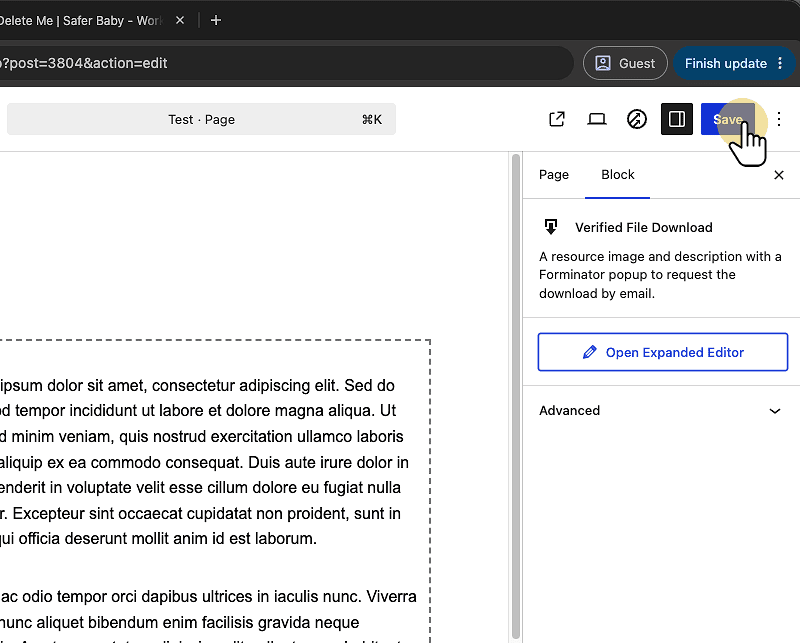
33. Click "Save"
Click the Save button to store your changes to the Verified Download Component configuration.
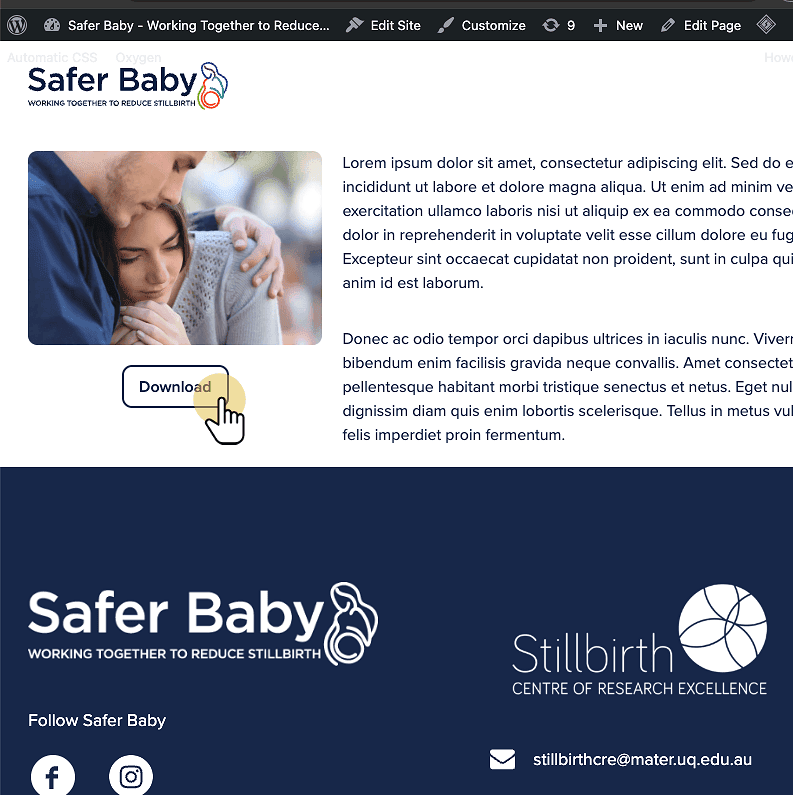
34. Preview the componnet
Click the Download button to initiate the download of the featured resource displayed by the Verified Download Component.
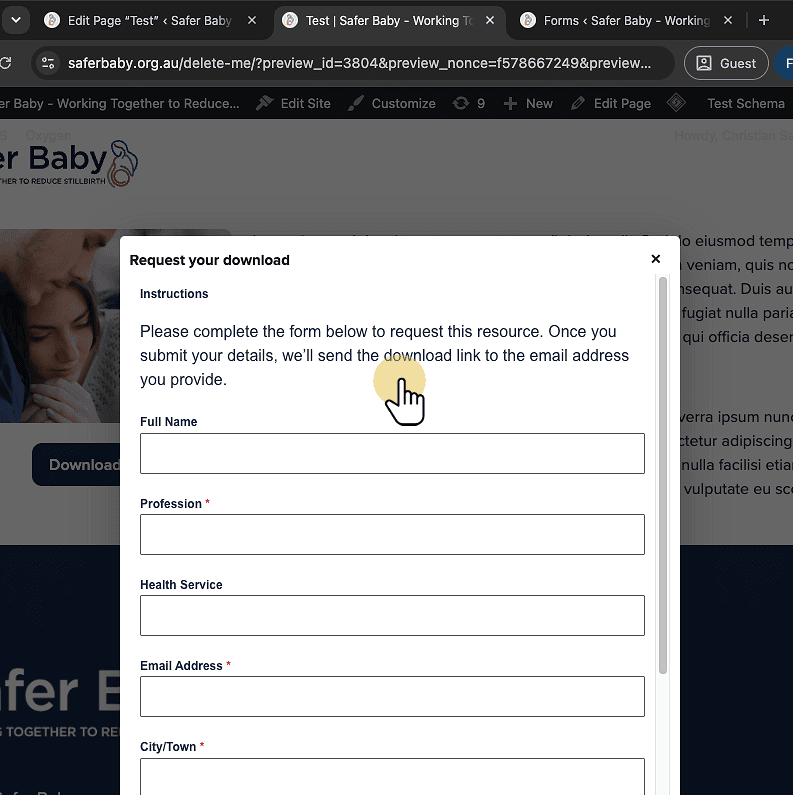
35. Form for Download
Once the Download button is clicked, a form will appear on screen. After completing and submitting the form, the user will receive an email with instructions for downloading the requested file.